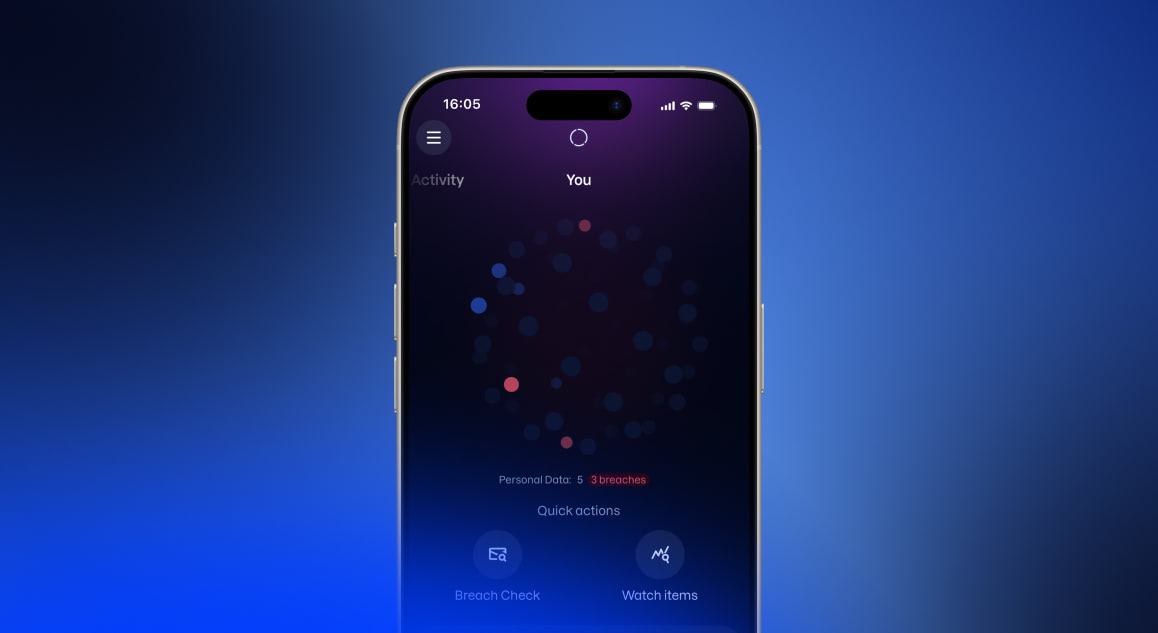
The sphere
The sphere in the middle of the screen is a visual summary of the personal information being watched. It draws on the same data as the card beneath it: the email addresses, phone numbers, cards, and documents added for monitoring, along with any that have appeared in a breach.
Each active dot represents one watched detail. A dot turns red once that detail has been found in a breach, and the sphere shifts into an alert state to show there is something to deal with. The remaining dim dots are decorative. How full the sphere looks is not a measure of how much is being watched. The two numbers inside it are the meaningful reading: one for the details being watched, and one for the breaches found among them.
On Android, the sphere also shows the number of installed apps that have been analyzed. This is a separate count that does not affect the dots or trigger an alert.
The sphere is a display rather than a control. The card and the buttons around it are the way into the features.
What is being watched
Below the sphere, a card shows the running total of personal details being watched, and whether they are all clear or a breach has been found.
Beneath the total is a row of category icons, each with its own count:
- Accounts: email addresses, phone numbers, and usernames.
- Financial information: credit cards and bank accounts.
- Identity documents: passports, social security numbers, driver's licenses, and health insurance numbers.
A count stays green while nothing has been found for that category, and turns yellow or red when a breach affects it, depending on how serious the breach is. Categories with nothing in them are hidden. The card lists only what is being watched.
Tapping the card opens the full personal data screen, where every watched detail and every breach can be reviewed. See Monitoring personal data. Watching is part of Kiren Plus.
Checking an email or adding something to watch
Two buttons at the top of the screen cover the two things needed most often here.
Breach Check answers a single question: has this email address appeared in a known data breach? It takes a few seconds, needs no setup, and is useful for an old address, or any address other than the one used to sign in. It reports what it finds once and does not keep watching afterward. With Kiren Plus, an address found in breaches can be added to the watched details straight from the result.
Watch items adds a personal detail, such as an email address, phone number, payment card, or passport, to be checked against known breaches right away and then watched continuously, with an alert if it appears in a new one. This is the option for anything that matters over time. It needs Kiren Plus.
Your apps (Android only)
On Android, the screen has a second card showing how many installed apps have been analyzed. The analysis lists what each app is able to reach, such as the camera, microphone, location, contacts, and messages. An app with more access than it needs stands out. Tapping the card opens the list of apps, or a short setup if they have not been analyzed yet. The results are kept on the phone and are not sent anywhere. See Your apps.
There is no equivalent on iOS, because Apple does not allow an app to see what else is installed on an iPhone.